
Approve Funding

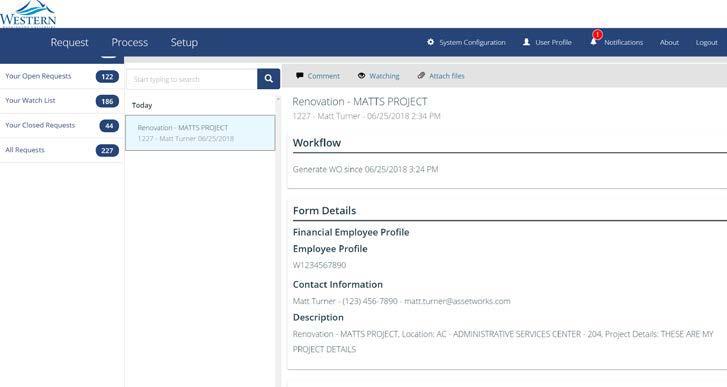
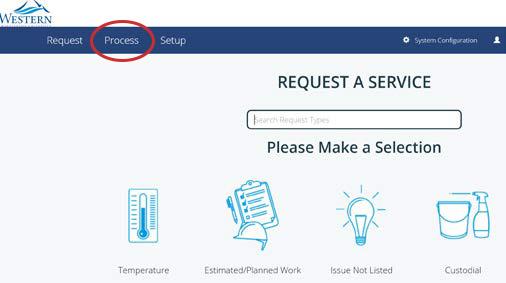
Screenshot showing instructions described below
  1. After logging in, click on Process in the Request a Service screen.
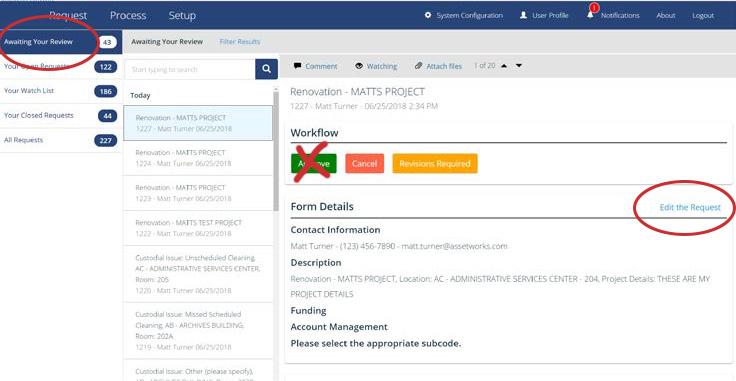
Screenshot showing instructions described below
  1. Click on Awaiting Your Review link at upper left and then on Edit Request on the right. Edit button is only accessible from the details tab of the request.
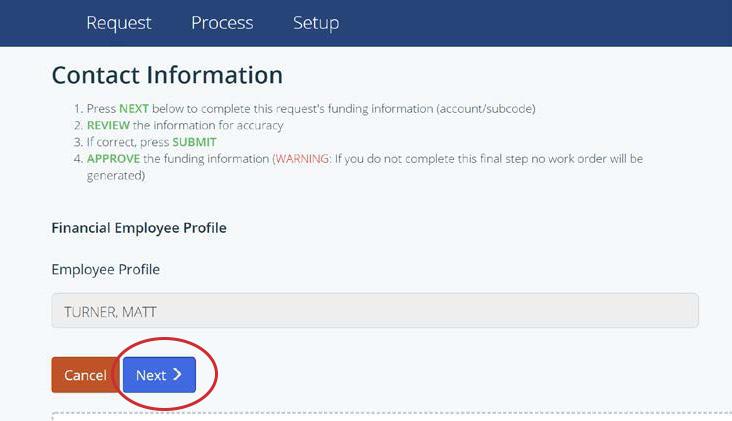
screen asking for contact information and funding source
  1. Follow steps 1-4 on the screen and click "Next"
screen asking for contact info and description
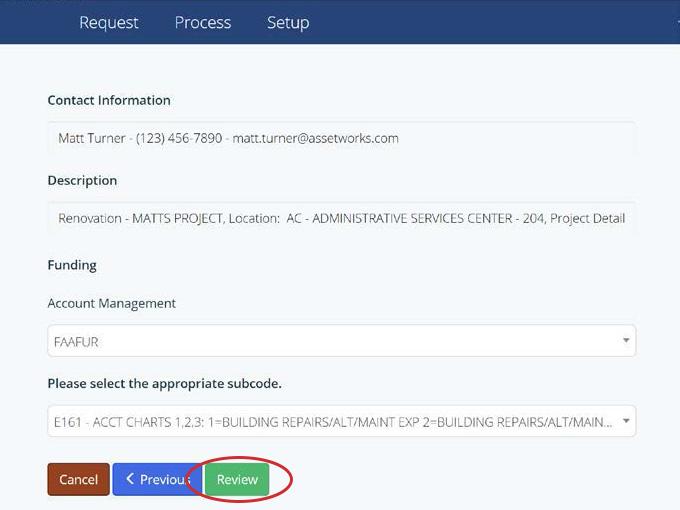
  1. After clicking "next," enter account information.

If you cannot find your index or you need to enter an Activity or Location Code, choose, "No Index" and enter the full FOAPAL in the space(s) provided. Funding information should be available from your department's budget authority.

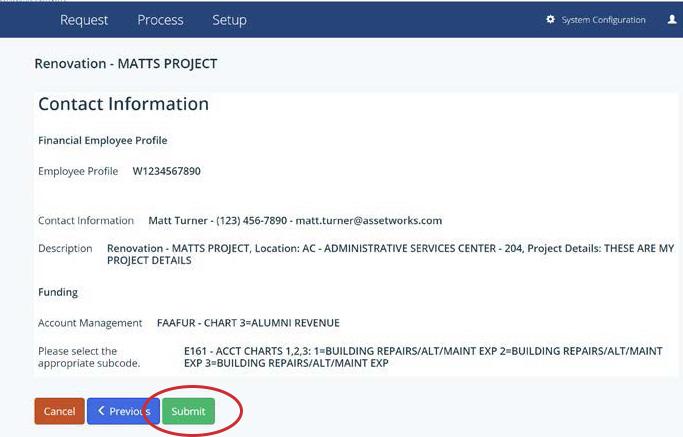
screen with contact info, description and funding
  1. Review request and submit.
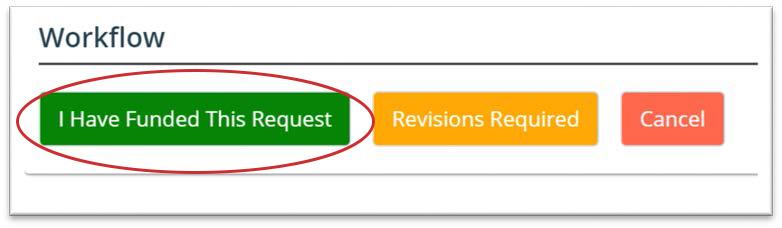
screen with funding approval button circled
  1. Approve funding by clicking "I have funded this request" button.
screen showing a work order has been generated
  1. Funded request has been sent for work order generation. You can see the work order number by clicking on the AiM tab in your request.